
1. Get the official app.
Install SuchVPN from Google Play and open it. You don’t need to register or sign in to a SuchVPN account.
Android is the platform available today. Downloads for other platforms are not yet available.
2. Choose your connection.
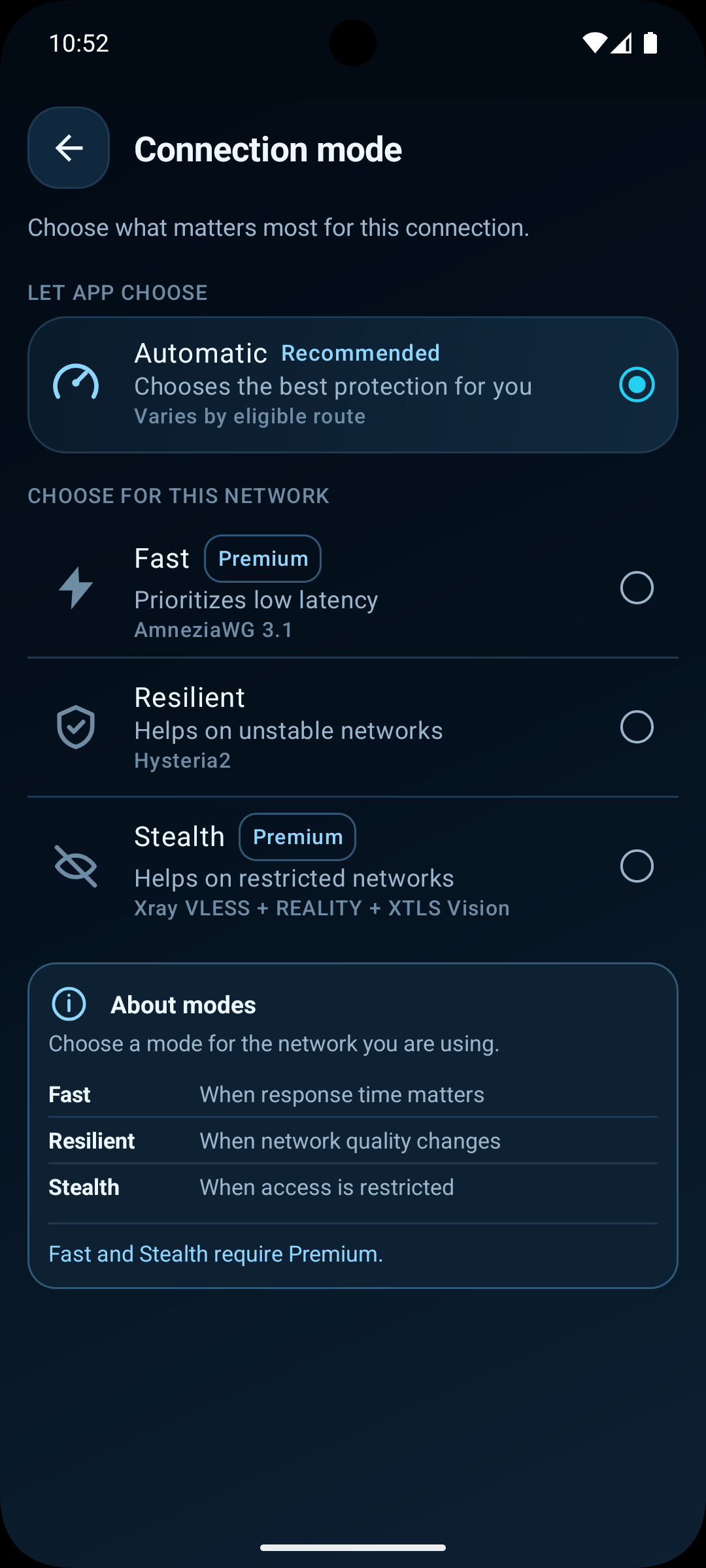
Start with Automatic and Best available, or select an available region and mode in the app. The available choices depend on your access and current network readiness.
If you have Free time, you can connect immediately. With no time left, Connect offers the choice to watch an optional rewarded ad for 30 minutes or go Premium. Ads are never forced during a connection.
3. Approve the VPN permission.
Tap Connect and approve Android’s VPN connection request when prompted. This lets SuchVPN create the VPN connection on your device.
Wait for the app to show Connected before relying on the VPN. A connecting message or selected location alone does not mean the tunnel is ready. Use Disconnect in the app when you want to end the connection.
If you can’t connect.
Check that your device has an internet connection and that you approved the Android VPN request. Confirm that you have Free time or Premium access, then try an available route or mode.
Read any message shown in the app before retrying. Avoid clearing app data or uninstalling as a routine troubleshooting step: your installation’s Free balance does not survive either action.